Robots.txt Generator: Create a Robots.txt File + XML Sitemap (Free)
Table of Contents
- 1. Why Use a Robots.txt Generator
- 2. What Robots.txt Actually Controls
- 3. Generating Your File: the 4-Step Workflow
- 4. Allow vs Disallow: the Two Directives That Do 90% of the Work
- 5. Targeting Specific Crawlers With User-Agent Rules
- 6. Blocking AI Crawlers: GPTBot, Claude & Google-Extended
- 7. What the XML Sitemap Part Does
- 8. Submitting Your Sitemap to Google Search Console
- 9. 5 Mistakes That Break Real Robots.txt Files
Every search engine crawler that visits your website reads one small text file before anything else: robots.txt. Get it right and crawlers spend their time on the pages that matter; get it wrong and you can accidentally hide your entire site from Google with a single misplaced character. That is exactly why a robots.txt generator exists — it writes the file for you from plain-language choices, so there is no syntax to memorize and no typo that costs you traffic.
In this guide you will use a free robots.txt generator online to create a correct robots.txt file plus a matching XML sitemap in minutes. You will learn the allow/disallow syntax the generator writes for you, how to target specific crawlers with user-agent rules, how to block AI crawlers like GPTBot and ClaudeBot, and how to submit your sitemap to Google Search Console so your pages get discovered faster.
Why Use a Robots.txt Generator Instead of Writing It by Hand
The robots.txt format looks deceptively simple — a few lines of User-agent, Allow, and Disallow. But it is unforgiving. Directives are case-sensitive, one stray Disallow: / on a live site tells every crawler to go away, and path rules follow longest-match logic that surprises even experienced developers. A robots.txt file generator removes that risk: you tick boxes and pick paths, and the tool assembles syntactically valid output every time.
There are three practical reasons to generate instead of hand-writing. First, accuracy. The generator validates the structure as you build it, so you cannot ship a malformed rule. Second, completeness. A good generator also produces the XML sitemap reference — the Sitemap: line that points crawlers at your sitemap.xml — so both files stay consistent. Third, speed. What takes 20 careful minutes by hand (plus a syntax double-check against the spec) takes about two minutes with a generator, and you can regenerate it whenever your site structure changes.
And because the best robots.txt generators run entirely in your browser, there is nothing to install and no account to create. You paste your choices in, copy the output out, and upload the file to your site. Free, private, done.
What Robots.txt Actually Controls (the 60-Second Version)
Think of robots.txt as a traffic controller standing at the entrance of your website. When a crawler like Googlebot arrives, it asks for /robots.txt first and reads your instructions: which sections it may visit, which are off-limits, and where your sitemap lives. It is a request, not a lock — well-behaved crawlers obey it, malicious scrapers ignore it.
That distinction matters because robots.txt is often misunderstood. It does not keep pages out of Google’s index (for that you need a noindex directive), it does not protect private data (never rely on it for security), and it does not control how your pages rank. What it does brilliantly is crawl budget management: steering crawlers away from admin panels, internal search results, staging copies, and infinite filter URLs so they spend their limited attention on the pages you actually want indexed.
If you want the full deep-dive on the protocol — the suggestion-vs-command nuance, longest-match rule resolution, and when noindex beats Disallow — our companion robots.txt syntax guide covers it in detail. This guide stays focused on the generator workflow: going from an empty file to a correct, uploaded robots.txt plus sitemap.
Generating Your Robots.txt: the 4-Step Workflow
Here is the exact workflow in the Toolenix Robots.txt & Sitemap Generator. It mirrors what every quality robots.txt generator online does, so you can follow along with any tool you prefer.
Step 1 — Choose who the rules apply to. Start with User-agent: *, which covers all crawlers. You will add crawler-specific blocks later if needed (see section 5). For most sites, the wildcard plus a few targeted blocks is the entire user-agent strategy.
Step 2 — Set the default posture. The safest default for a public site is to allow everything, then carve out exceptions. That means your first real line is typically Disallow: with nothing after it (allow all) — or simply no Disallow at all — followed by the specific paths you want closed. Starting from “allow all” prevents the classic disaster of accidentally blocking the whole site.
Step 3 — Add your Disallow paths. Typical entries: /admin/, /wp-admin/, /cart/, /checkout/, internal search like /search?, and any staging or preview subdirectories. Be specific — Disallow: /private/ blocks that folder but leaves the rest of the site crawlable. The generator lets you add these one per line without worrying about formatting.
Step 4 — Attach your sitemap and export. Add the sitemap reference as a full URL: Sitemap: https://example.com/sitemap.xml. Then copy or download the generated file and upload it to your site’s root directory. A complete minimal file looks like this:
User-agent: *
Disallow: /admin/
Disallow: /checkout/

Sitemap: https://example.com/sitemap.xml

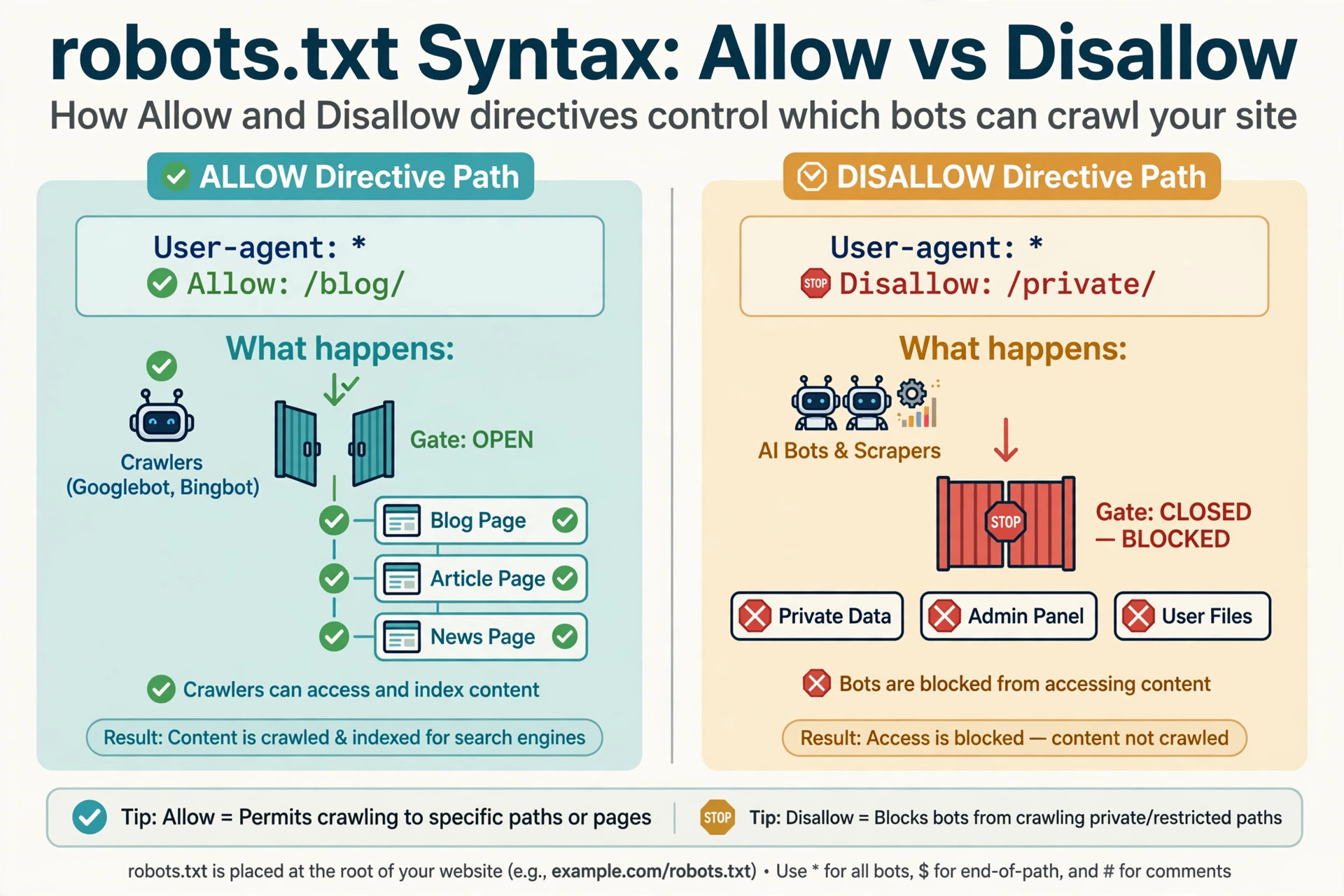
Allow vs Disallow: the Two Directives That Do 90% of the Work
Almost every robots.txt file is built from just two directives. Disallow tells a crawler not to visit paths matching the pattern; Allow carves exceptions back out of a disallowed area. When both match a URL, the longest (most specific) rule wins.
A common real-world pattern: you block an entire section but keep one page inside it crawlable.
User-agent: *
Disallow: /docs/internal/
Allow: /docs/internal/quickstart.html
Here everything under /docs/internal/ is closed except the quickstart page, because the longer Allow rule wins for that URL. This longest-match behavior is the single most useful thing to internalize about robots.txt allow/disallow syntax — and it is also the thing a generator gets right automatically while hand-written files get wrong.
Two syntax details worth knowing even when a tool writes the file: paths are case-sensitive (/Blog/ and /blog/ are different), and * matches any sequence of characters while $ anchors the end of a URL. So Disallow: /*? blocks every URL containing a question mark (handy for filter parameters), and Disallow: /*.pdf$ blocks all PDF files.
Targeting Specific Crawlers With User-Agent Rules
The User-agent line decides who a block of rules applies to. User-agent: * means every crawler. But you can also write rules for one crawler at a time by naming its user-agent string — for example User-agent: Googlebot or User-agent: Bingbot. Rules are grouped: everything between one User-agent line and the next belongs to that crawler.
When is this useful? A few scenarios come up constantly. You might give Googlebot full access while slowing down an aggressive price-scraping bot. You might disallow a research crawler from your image folders but let it read your articles. Or you might block AI training crawlers entirely while keeping search crawlers welcome — which deserves its own section, because it is the most requested generator feature right now.
One caution: user-agent targeting only works if the crawler identifies itself honestly. Major search engines do; shady scrapers often spoof common user-agents like a regular browser. So treat user-agent blocks as instructions for cooperative bots, and use server-level tools (rate limiting, WAF rules) for the uncooperative ones.
Blocking AI Crawlers: the Feature Everyone Asks About Now
Since 2023, site owners have had a new question: how do I stop AI companies from training on my content? The answer, as far as robots.txt goes, is to add Disallow blocks for each AI crawler’s user-agent. The important ones to know:
- GPTBot and ChatGPT-User — OpenAI’s training and browsing crawlers
- ClaudeBot — Anthropic’s crawler
- CCBot — Common Crawl, whose data feeds many AI training sets
- Google-Extended — Google’s opt-out token for AI training (separate from Googlebot, so blocking it does not affect your Google Search rankings)
A generator with AI-bot presets writes the whole block in one click:
User-agent: GPTBot
Disallow: /

User-agent: ChatGPT-User
Disallow: /

User-agent: ClaudeBot
Disallow: /

User-agent: CCBot
Disallow: /

User-agent: Google-Extended
Disallow: /
Be honest with yourself about the limits: this is a request that respectable AI companies honor, not a technical barrier. Content that is already public can still be collected through other means, and a scraper that ignores robots.txt will ignore these lines too. But for the major AI labs — which do respect the protocol — these five blocks are currently the standard, effective way to opt out. Because new AI crawlers appear regularly, regenerate your file every few months to pick up new presets.
What the XML Sitemap Part Does
While robots.txt says where crawlers may go, an XML sitemap says here are the pages I want you to find. It is a machine-readable list of your important URLs — optionally with last-modified dates — that helps search engines discover new pages, deep pages, and pages with few internal links pointing at them. That is why a combined robots.txt + sitemap generator is so convenient: the two files are designed to reference each other.
The connection between them is a single line in robots.txt:
Sitemap: https://example.com/sitemap.xml
Unlike the other directives, Sitemap: is not tied to a user-agent block — it applies to all crawlers and can appear anywhere in the file, conventionally at the end. Use the full absolute URL including https://; relative paths do not work here.
What belongs in the sitemap itself? Your canonical, indexable pages: main content pages, blog posts, product pages. What does not belong: the same admin, checkout, and internal-search URLs you disallowed in robots.txt (never tell crawlers to skip a URL in one file and feature it in the other), redirect chains, 404s, and near-duplicate thin pages. A clean sitemap with 200 real pages beats a bloated one with 20,000 junk URLs — quality of the list is a signal in itself.
Submitting Your Sitemap to Google Search Console
Generating the files is half the job; telling search engines about them is the other half. Here is the submission sequence:
1. Upload both files to your site root. Place robots.txt at https://example.com/robots.txt and sitemap.xml at https://example.com/sitemap.xml. Verify each loads in a browser — the content should be exactly what the generator produced.
2. Submit the sitemap in Google Search Console. Open your property, go to Sitemaps in the left menu, enter sitemap.xml in the “Add a new sitemap” field, and submit. Status should flip to Success within a day or two, showing how many URLs were discovered.
3. Check the robots.txt report. In Search Console go to Settings > robots.txt to see the exact file Google fetched, when it was last crawled, and any syntax warnings. This is also where you will spot caching issues — Google may take up to 24 hours to pick up a changed file.
4. Repeat in Bing Webmaster Tools. Bing powers a meaningful share of search traffic and has its own sitemap submission under Sitemaps. The same files work for both engines.
After submission, monitor the Pages report in Search Console over the following weeks. You should see discovery improve for the URLs listed in your sitemap, and the “Blocked by robots.txt” reason should only ever list URLs you intentionally closed.
5 Mistakes That Break Real Robots.txt Files
1. The staging leak. Developers add Disallow: / to a staging site, the site goes live, and the file goes with it — the entire production site vanishes from search. Always re-generate or review robots.txt at launch. This single mistake has taken down more rankings than any algorithm update.
2. Blocking CSS and JavaScript. Google needs your CSS and JS to render pages properly. Old advice said to block /wp-includes/ and asset folders; modern guidance is to let Googlebot fetch everything required for rendering. Only block assets if you have a specific reason.
3. Case-sensitivity surprises. Disallow: /images/ does nothing for /Images/. If your URLs mix cases, either normalize them or add rules for each variant.
4. Robots.txt in the wrong place. Crawlers check exactly one URL: yourdomain.com/robots.txt. A file at /assets/robots.txt or on a subdomain does nothing for the main domain. Upload to the root, every time.
5. Treating robots.txt as security or de-indexing. Disallowed URLs can still be indexed if linked from elsewhere, and anyone can read your robots.txt — so never list truly secret paths in it (you are publishing a map of your private areas). For removal from the index use noindex; for real protection use authentication.
A generator prevents mistakes 1 through 4 structurally — it will not emit a bare Disallow: / unless you explicitly ask for it, and its output goes to the right filename by default. Mistake 5 is a conceptual one, which is why it is worth stating plainly: robots.txt manages crawler traffic; it is not access control.
Try it free — no sign-up
Generate both files in about two minutes. Everything happens in your browser.
Open the Robots.txt & Sitemap GeneratorFrequently Asked Questions
What is a robots.txt generator?
A robots.txt generator is a free online tool that builds a valid robots.txt file from your choices instead of you writing the syntax by hand. You pick which crawlers the rules apply to, which paths to allow or block, and whether to reference your XML sitemap — the tool outputs a ready-to-upload file, so there is no risk of a typo accidentally hiding your site from search engines.
Do I need both a robots.txt file and an XML sitemap?
They do different jobs, and most sites benefit from both. Robots.txt tells crawlers which parts of your site they may or may not visit. An XML sitemap lists the URLs you want crawled and indexed, helping search engines discover new or deep pages faster. A good generator produces both in one pass and adds a Sitemap: line to robots.txt pointing at the sitemap.
How do I block ChatGPT and other AI crawlers with robots.txt?
Add a rule block for each AI crawler’s user-agent with Disallow: /. The main ones are GPTBot and ChatGPT-User (OpenAI), ClaudeBot (Anthropic), CCBot (Common Crawl), and Google-Extended (Google’s AI training opt-out). A robots.txt generator with AI-bot presets adds all of these in one click. Note this only works for bots that respect robots.txt — it is a request, not a firewall.
Where do I put the robots.txt file after generating it?
Upload it to the root of your domain, so it is reachable at https://example.com/robots.txt. Crawlers only look in that one location; a robots.txt placed in a subfolder is ignored. The same applies to your sitemap — keep it at the root (e.g. /sitemap.xml) and reference it from robots.txt with a full URL.
How do I check whether my robots.txt is working?
First, open https://yourdomain.com/robots.txt in a browser to confirm the file is live and matches what you generated. Then use Google Search Console’s robots.txt report (Settings > robots.txt) to see the version Google fetched and any syntax warnings. For the sitemap, submit it under Sitemaps in Search Console and watch for a Success status.
Can robots.txt stop Google from indexing a page?
No — robots.txt only controls crawling, not indexing. If you disallow a page, Googlebot will not visit it, but the URL can still appear in search results if other sites link to it. To keep a page out of the index, use a noindex meta tag instead, and make sure robots.txt does not block the page (Google must be able to crawl it to see the noindex directive).