Email DNS Checker: Fix SPF, DKIM & DMARC to Reach the Inbox
Table of Contents
"Why are my emails going to spam?" It is one of the most frustrating questions in business, because the answer is almost never the email itself. Your subject line is fine. Your content is fine. The problem is invisible: three DNS records — SPF, DKIM, and DMARC — that receiving servers check before your message ever reaches an inbox. If any of them is missing or broken, the world's biggest mailbox providers quietly route you to spam or reject you outright.
An email DNS checker is the fastest way to see the problem. Type in your domain, and within seconds you get an SPF record check, a DKIM record check, a DMARC record check, and an MX lookup — everything a receiving server looks at when deciding whether to trust you. This guide walks you through what those checks mean, the fixes that matter, and how to run an email deliverability test that proves you fixed it.
Why Your Emails Go to Spam
Here is the uncomfortable truth: the inbox is a bouncer, and email deliverability is mostly decided before your content is ever read. In February 2024, Gmail and Yahoo began requiring bulk senders (roughly 5,000+ emails a day to their users) to publish SPF, DKIM, and DMARC records — and even small senders feel the effect, because the same spam filters score everyone.
When authentication fails, three things happen, in increasing order of pain:
- Spam folder. Your message arrives but lands where nobody looks. Open rates collapse and you blame your subject lines.
- Quarantine. The receiving server holds the message for review. The recipient never sees it.
- Rejection. The server refuses the message outright. You may get a bounce — or you may hear nothing at all.
Content still matters (spammy wording, purchased lists, and low engagement hurt), but authentication is the gate. No SPF, DKIM, or DMARC means the bouncer never even reads your ID. That is why the first step in any deliverability rescue is always the same: run an email authentication checker and see what the DNS actually says.
What SPF, DKIM, and DMARC Actually Do
You do not need a networking degree for this. Think of the three records as the bouncer's three questions:
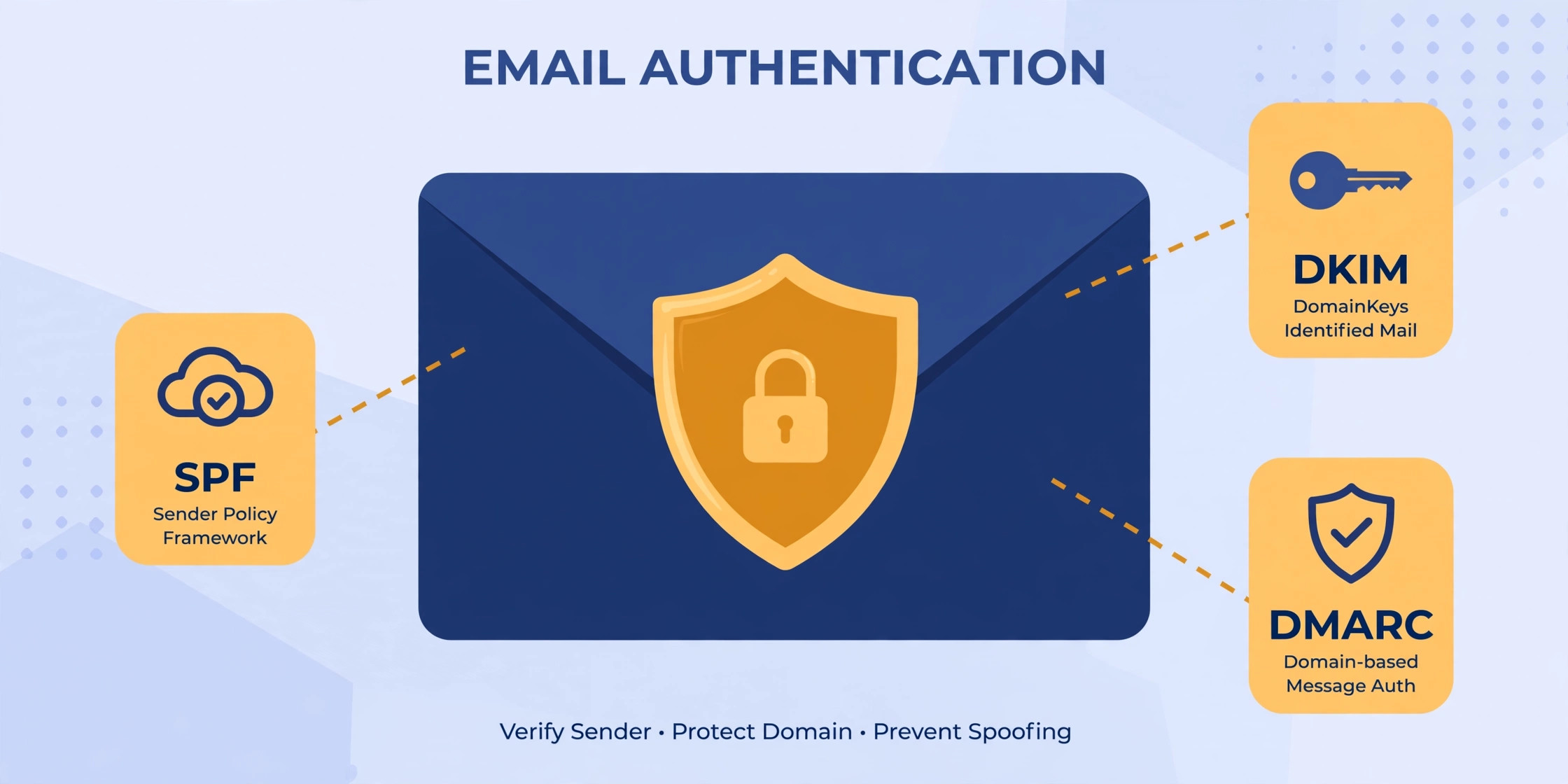
SPF (Sender Policy Framework): "Is this server allowed to send for you?" SPF is a TXT record on your domain that lists every mail server authorized to send email as you — your Google Workspace or Microsoft 365 servers, your newsletter tool, your CRM. When a message arrives, the receiving server checks the sending IP against that list. If it matches, the email SPF check passes.
DKIM (DomainKeys Identified Mail): "Is this message genuine and unaltered?" Your sending server adds a cryptographic signature to every outgoing message, using a private key. Receivers fetch the public key from a special DNS record (a selector like google._domainkey.yourdomain.com) and verify the signature. A valid signature proves the message really came from you and nobody tampered with it in transit.
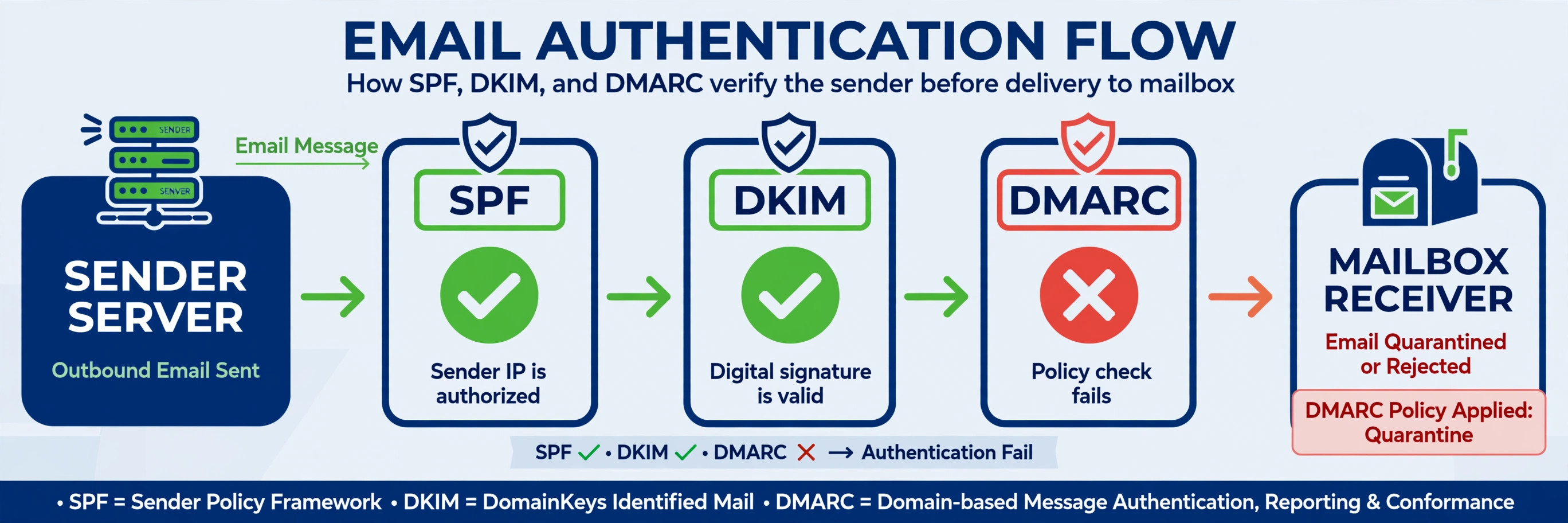
DMARC (Domain-based Message Authentication, Reporting & Conformance): "What should I do if the first two fail?" DMARC is a TXT record at _dmarc.yourdomain.com that publishes your policy: p=none (just report), p=quarantine (send failures to spam), or p=reject (block them). It also requires alignment — the domain in the visible From header must match the domain that passed SPF or DKIM. And it gives you something precious: aggregate reports (rua=) showing exactly who is sending mail as your domain, including attackers.
Short version: SPF is the guest list, DKIM is the wax seal on the envelope, and DMARC is your written instruction to the bouncer. You need all three.
How to Use an Email DNS Checker
A good email DNS checker does in seconds what used to take command-line digging. Here is the exact workflow:
Step 1: Enter your domain. Open the Email DNS Checker and type your domain name — just yourdomain.com, no @, no www. Everything runs in your browser; nothing is sent anywhere.
Step 2: Run the lookup. The tool queries the public DNS for four things at once: MX (your mail servers), SPF (your authorized senders), DMARC (your policy), and DKIM (your signing keys).
Step 3: Know your DKIM selector. This is the one detail the checker cannot guess. DKIM keys live under a selector subdomain (for example google._domainkey), and every provider picks its own. Google Workspace uses google; Microsoft 365 uses selector1/selector2; Mailchimp uses k1. Enter the selector your provider gave you — the checker then verifies the key actually exists and is valid.
Step 4: Read the verdicts. Each record gets a pass, fail, or missing verdict with the raw DNS value shown. Do not stop at "SPF exists" — the value itself is where the bugs hide, as the next section explains.
Step 5: Fix, wait, re-check. Make the DNS change at your provider, wait out the record's TTL (more on that below), and run the SPF DKIM DMARC check again until everything is green.
Reading Your Results: What Pass and Fail Mean
Checker output looks simple — green or red — but each verdict has a specific meaning:
- SPF pass: exactly one SPF TXT record exists, its syntax is valid, and it authorizes your sending servers. Watch for softfail (
~all) vs hardfail (-all): hardfail is stricter and better once you are confident. - SPF fail / multiple records: more than one TXT record starting with
v=spf1— this is an instant fail per the spec, no matter what the records say. Merge them into one. - DKIM pass: the selector resolves and the public key is a valid RSA key. Note: a DNS check confirms the key exists; only a signed test email confirms your provider is actually signing.
- DMARC pass: a valid policy exists at
_dmarc.p=nonecounts as "exists but not enforcing" — fine for week one, not a finished job. - MX pass: at least one MX record points at a real mail server. No MX records means nobody can reply to you — and some filters treat it as a spam signal.
The 5 Most Common Misconfigurations
Across thousands of domains, the same five bugs show up again and again. If your check DMARC record or SPF lookup came back red, it is almost certainly one of these:
1. Multiple SPF records. The SPF spec allows exactly one. Two v=spf1 records — say one from Google Workspace and one your web host added — means SPF fails permanently. Merge every include: into a single record.
2. Too many DNS lookups in SPF. SPF allows a maximum of 10 DNS lookups (include, a, mx, redirect each count). Big providers' includes nest inside each other, so three innocent-looking includes can explode into 12 lookups and a permerror. Flatten the record or drop services you no longer use.
3. No DMARC record at all. The most common finding of all. Without DMARC, attackers can spoof your domain freely and receivers have no instruction to stop them. Publish at least v=DMARC1; p=none; rua=mailto:[email protected] today — monitoring beats nothing.
4. DKIM selector mismatch. The key exists under k1._domainkey but your provider signs with k2, or you rotated keys and forgot the DNS. The checker shows you exactly which selector resolves — match it to what your provider is actually signing with.
5. DMARC stuck at p=none forever. Monitoring mode is a starting line, not a finish line. Domains that never graduate to quarantine and then reject get almost no spoofing protection, and some receivers score p=none barely above no DMARC at all.
Don't Forget MX Records
MX records are the unglamorous sibling — they just say where inbound mail should be delivered. But a missing or wrong MX setup causes real deliverability pain: replies bounce, automated messages (password resets, order confirmations) fail, and some spam filters treat "sends mail but cannot receive it" as suspicious.
Your checker's MX lookup should show your real mail host with sensible priorities (lower number = tried first). If you recently migrated providers — say from cPanel mail to Google Workspace — stale MX records pointing at the old host are a classic source of "some emails never arrive" mysteries. Clean them up and keep exactly one mail system authoritative.
DMARC Rollout: none → quarantine ← reject
Jumping straight to p=reject is how companies accidentally block their own invoices. The safe rollout takes weeks, not minutes:
- Phase 1 — p=none (weeks 1–2). Publish the record with a reporting mailbox. Nothing is blocked; you just collect data. Read the aggregate reports to inventory every service sending as your domain — you will find senders you forgot about.
- Phase 2 — p=quarantine (weeks 3–4). Failing messages go to spam instead of the inbox. Legitimate senders you missed in phase 1 will complain — that is the point. Fix their authentication.
- Phase 3 — p=reject. Failing messages are blocked outright. Your domain is now very hard to spoof, and receivers trust you more — which directly improves email deliverability.
Keep the rua= reporting address forever. DMARC reports are a free intrusion-detection feed for your domain: a sudden spike in failures from an unfamiliar IP range is often the first sign someone is spoofing you.
After the Fix: Testing Deliverability
DNS changes are not instant. Every record has a TTL (time to live) telling resolvers how long to cache the old value — commonly 1 to 4 hours. Lower the TTL to 300 seconds before making changes, then wait at least one full old-TTL window before judging the result.
Then run your email deliverability test end to end:
- Re-run the email DNS checker until SPF, DKIM, DMARC, and MX are all green.
- Send test emails to Gmail, Outlook, and Yahoo addresses you control. Check the spam folder — and in Gmail, open "Show original" to confirm the Authentication-Results header shows
spf=pass,dkim=pass,dmarc=pass. - If you send in volume, enroll in Google Postmaster Tools to monitor your domain reputation and spam rate over time.
- Re-check quarterly. Providers change their include records, teams add new sending tools without telling anyone, and keys should be rotated yearly. A two-minute email DNS checker run every few months catches drift before it costs you the inbox.
Authentication will not fix a burned sender reputation overnight, but it is the foundation everything else stands on. Get SPF, DKIM, and DMARC green, keep them green, and the bouncer starts waving you through.
Try it free — no sign-up
Run the numbers yourself in seconds. Everything happens in your browser.
Open the Email DNS CheckerFrequently Asked Questions
How do I check if my email is authenticated?
Run an email DNS checker: type your domain name and it performs an SPF record check, a DKIM record check, and a DMARC record check in seconds. A pass on all three means your domain is authenticated. If any check fails, the tool shows you exactly which record is missing or misconfigured so you can fix it at your DNS provider.
What is SPF, DKIM, and DMARC?
SPF (Sender Policy Framework) is a DNS record listing which mail servers are allowed to send email for your domain. DKIM (DomainKeys Identified Mail) adds a cryptographic signature to each message so receivers can verify it was not altered. DMARC (Domain-based Message Authentication, Reporting & Conformance) ties the two together: it tells receiving servers what to do when SPF or DKIM fail, and sends you reports about who is sending mail as your domain.
Why do my emails go to spam even though SPF is set up?
SPF alone is not enough. Since February 2024, Gmail and Yahoo require bulk senders to also have DKIM signing and a DMARC policy. Common culprits: a missing or broken DKIM signature, multiple SPF records (only one is allowed), an SPF record with too many DNS lookups, or a sending IP with a poor reputation. An email authentication checker will show which of these is failing.
What DMARC policy should I start with?
Start with p=none plus a reporting address (rua=mailto:[email protected]). This monitoring mode changes nothing about delivery but sends you daily reports showing who passes and fails. After 2-4 weeks of clean reports, move to p=quarantine, and finally p=reject once you are confident every legitimate sender is authenticated.
How long do DNS changes take to propagate?
It depends on the TTL (time to live) of the record you changed. Most providers use TTLs between 5 minutes and 4 hours. Lower the TTL to 300 seconds before making changes, then re-run your email deliverability test after the old TTL expires. Do not judge a fix as failed until at least the full TTL window has passed.
Is an email DNS checker free and safe to use?
Yes. Checking DNS records only reads public information that anyone on the internet can already see — no credentials, no access to your mailbox, and nothing to install. The Toolenix email DNS checker runs entirely in your browser: enter a domain, get MX, SPF, DKIM, and DMARC results instantly, free, with no sign-up.