Image Cropper: The Complete Guide to Cropping Images for Every Platform
Table of Contents
- 1. What an image cropper actually does
- 2. Aspect ratios, decoded
- 3. The platform cheat sheet
- 4. Circle crops and square crops for avatars
- 5. Pixel-precise cropping: crop image to exact size
- 6. Batch cropping: many images, one workflow
- 7. Cropping with the Toolenix image cropper
- 8. Cropping mistakes that ruin photos
Of every image edit people make, cropping is the one they make most — and the one they think about least. A photo gets cropped for an Instagram post, a headshot gets cropped for LinkedIn, a screenshot gets cropped to remove the clutter around it. It takes ten seconds, and yet most people do it with whatever image cropper happens to be nearest, accept whatever default it offers, and wonder later why the result looks slightly off.
This guide is about doing it properly. Not the composition theory — there are whole books about the rule of thirds — but the practical craft: which aspect ratio each platform actually wants, when a circle crop beats a square one, how to crop an image to an exact size in pixels, and how to crop fifty images at once instead of one at a time. Everything here works with any decent online image cropper, and the workflows are written around the free Image Cropper on Toolenix, which runs entirely in your browser — your photos never leave your device.
What an image cropper actually does
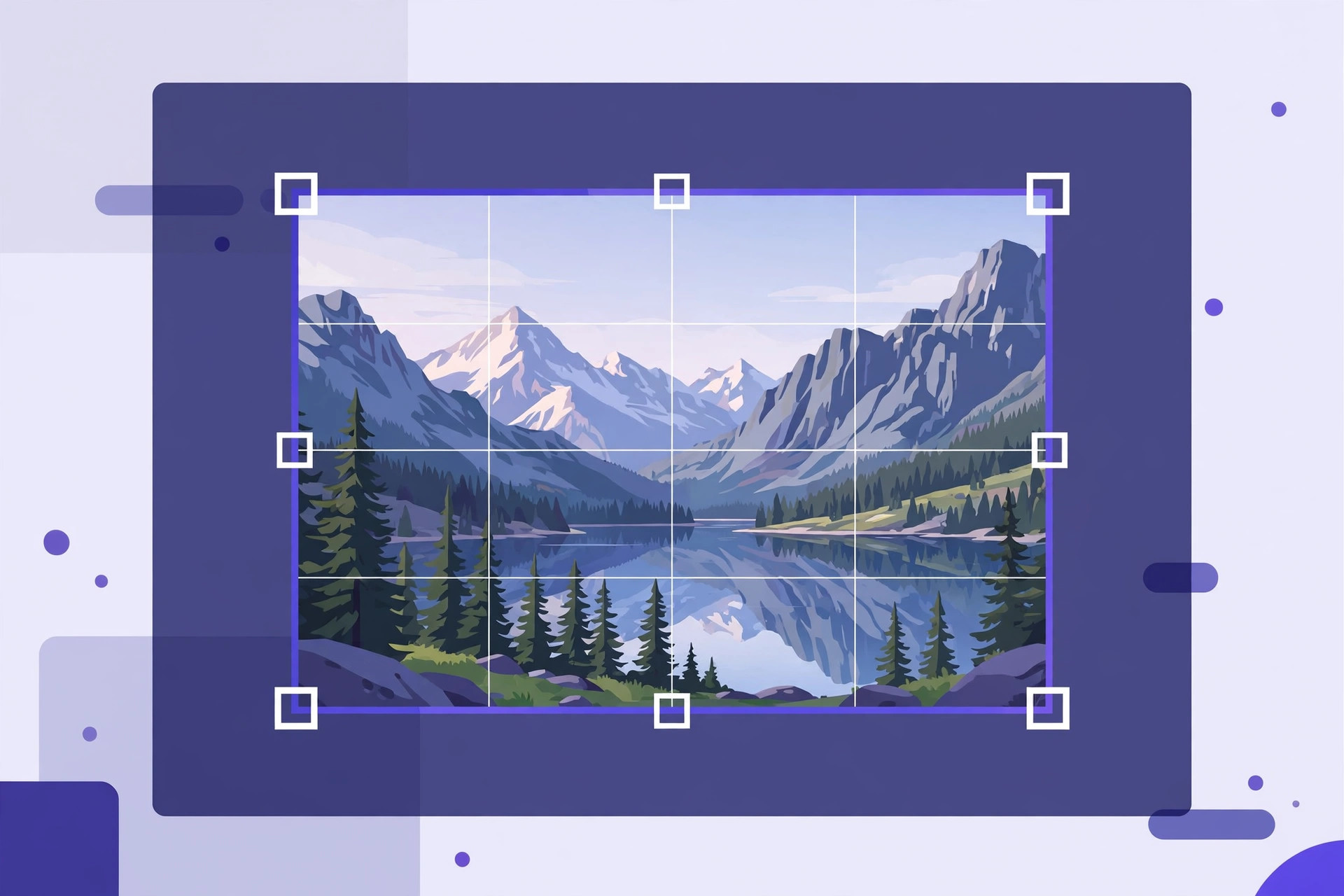
An image cropper does exactly one thing: it selects a rectangular (sometimes circular) region of your photo and discards everything outside it. That's it. It doesn't shrink the photo, it doesn't compress it, it doesn't change colors — it cuts. Understanding that narrow job description matters, because cropping gets confused with two neighboring operations constantly.
Cropping vs. resizing. Resizing changes the pixel dimensions of the whole image — a 4000×3000 photo becomes 1200×900, keeping everything in the frame but smaller. Cropping changes what's in the frame — a 4000×3000 photo becomes 2000×2000 by throwing away the left and right thirds. A square image cropper taking the center of a landscape photo is the classic example: same pixels per inch, less scene.
Cropping vs. compressing. Compression reduces file size by throwing away image data (JPEG quality) while keeping the frame identical. Cropping reduces file size as a side effect — fewer pixels to store — but its purpose is reframing, not slimming. If your goal is a smaller file with the same composition, you want the Image Compressor, not the cropper. If your goal is a different composition or a platform-mandated shape, you want the cropper.
The practical upshot: crop first, then resize or compress. Cropping away unwanted pixels before you compress means the compressor has less data to process and the result is sharper, because you're not wasting quality budget on parts of the image nobody will see.
Aspect ratios, decoded
Every crop is a rectangle with a shape, and that shape has a name: the aspect ratio, written as width:height. An aspect ratio cropper locks your selection to one of these shapes so the crop comes out exactly right for its destination. Here are the five that cover roughly 95% of real-world cropping.
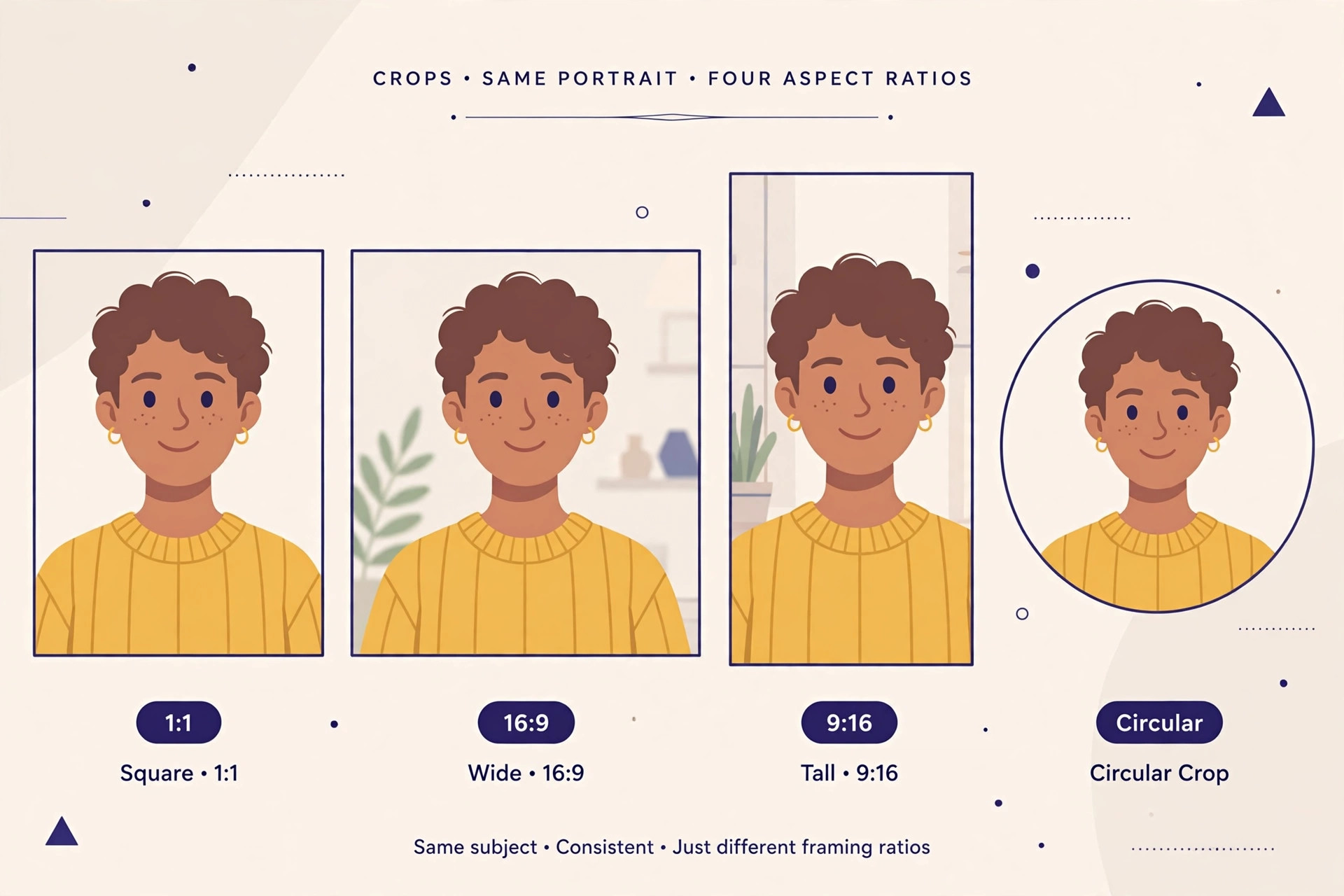
1:1 — the square. Equal sides. The native shape of Instagram posts, profile pictures, album art, and favicons. When someone says "square image cropper," this is the ratio they mean. It's also the most forgiving crop: centering the subject almost always works.
4:3 — the classic photo. The shape of old digital cameras and most phone photos in "photo" mode. Slightly wider than tall. Still the default for many print sizes (a 6×4 inch print is 3:2, close cousin). Use it when you want a natural, traditional photo feel.
3:2 — the DSLR standard. Full-frame cameras shoot 3:2 natively. It's the ratio of classic 35mm film. If your photo came from a "real" camera, it probably started life at 3:2, and cropping back to 3:2 after straightening keeps the familiar look.
16:9 — the widescreen. The shape of YouTube thumbnails, presentation slides, desktop wallpapers, and modern video. Dramatic and cinematic for landscapes — it emphasizes horizons. This is the ratio where cropping a vertical phone photo gets painful, because you're discarding most of the frame.
9:16 — the vertical. 16:9 flipped on its side. The native shape of Instagram Stories, Reels, TikTok, and YouTube Shorts — the entire short-form video world. If you're cropping a still to use as a story background or reel cover, 9:16 is the ratio.
A good cropper lets you pick the ratio first and then move the box around, rather than freehand-dragging and hoping. Locking the ratio is what separates a clean, professional crop from one that's "close enough" but subtly wrong — platforms notice, and so do viewers, even if they can't name why.
The platform cheat sheet
Here's where theory meets the reason most people open an image cropper in the first place: every platform wants a different shape, and uploading the wrong one means the platform crops it for you — badly, automatically, and without asking. Crop it yourself first and you stay in control.
Instagram. Feed posts: 1:1 square (1080×1080) is the safe classic, though 4:5 portrait (1080×1350) gets more screen space. Stories and Reels: 9:16 (1080×1920). Profile picture: square source, displayed as a circle — which means you should crop 1:1 with the face centered and a margin around it (more on circle crops below).
YouTube. Thumbnails: 16:9 (1280×720 minimum). Channel banner: the safe area is 1546×423 centered in a 2560×1440 canvas — crop your banner art to 16:9 first, then position the important content in the middle. Shorts thumbnails follow the 9:16 vertical.
LinkedIn. Profile photo: 1:1 square (400×400 minimum, displayed circular). Company logo: 1:1 (300×300). Post images: 1200×627 (roughly 1.91:1) for link previews — crop wide and keep text away from the edges.
X and Facebook. X post images: 16:9 (1200×675) displays best; profile pictures are circular from a square source, same as Instagram. Facebook link previews: 1200×630. Event covers: 16:9.
The pattern: 1:1 for avatars, 16:9 for thumbnails and banners, 9:16 for stories. Memorize that trio and you'll handle nearly every upload correctly. When in doubt, crop slightly looser than you think — you can always crop tighter later, but you can't uncrop.
Circle crops and square crops for avatars
Profile pictures are the single most common crop on the internet, and they have a quirk: you upload a square, the platform shows a circle. Instagram, X, LinkedIn, GitHub, Slack — nearly all of them mask your square upload into a circle image cropper result. The corners get cut off, and if anything important lives in those corners (an ear, a logo edge, text), it vanishes.
The fix is to crop with the circle in mind. Start from a 1:1 square, center the face, and leave generous margin — imagine a circle inscribed in the square and keep everything important inside it. Faces should occupy roughly the middle 60% of the frame. If you're cropping a logo for an avatar, shrink it slightly within the square rather than letting it touch the edges; the circle mask will eat the corners.
Some croppers offer a true circular crop that outputs a round image with transparent corners (PNG with alpha). That's ideal for avatars on websites and presentations. For social platforms, though, upload the square — they apply their own circular mask, and a pre-circularized PNG can render with odd edges after their processing.
Pixel-precise cropping: crop image to exact size
Sometimes "roughly square" isn't good enough. A print shop wants exactly 3000×2400 pixels. A web developer needs an image cropper by pixel that outputs precisely 1200×630 for an Open Graph image. An AI image cropper might guess at composition, but for exact dimensions you need numeric control, not vibes.
Pixel-precise cropping works like this: you set the exact output width and height (say, 1080×1080), and the cropper constrains the selection box to that exact size — you just drag it to choose which 1080×1080 region to keep. The output is guaranteed to be those dimensions, no surprises. This is fundamentally different from ratio-locked cropping, where the shape is fixed but the pixel size depends on how big you drag the box.
Two things to watch. First, you can't crop bigger than the source: a 800×600 photo cannot yield a 1080×1080 crop without upscaling (which invents pixels and softens the image). If the cropper warns you the selection exceeds the image, believe it — either accept a smaller crop or pick a different source photo. Second, remember the crop-then-resize order: if you need 1080×1080 but your crop region is 2000×2000, crop first, then downscale with the Image Resizer. Downscaling after cropping preserves maximum sharpness.
Batch cropping: many images, one workflow
Here's the scenario that separates casual cropping from real workflows: you have forty product photos, all shot on the same white background, and the marketplace wants every one of them as a 1:1 square. Opening each in a cropper, dragging the box, exporting, repeating forty times — that's an afternoon gone.
A bulk image cropper solves this with a simple idea: define the crop once, apply it to everything. The Toolenix image cropper's batch mode works exactly this way. You set your aspect ratio — say 1:1 with a center crop — drop in all forty images, and each one gets the same centered square crop. Then you download the lot as a single ZIP instead of forty separate files.
Center-crop-to-ratio is the key trick that makes batch cropping practical. For product shots, headshots, and thumbnails, the subject is usually near the center anyway, so a centered crop of the right ratio is correct often enough to be the default. You review the results, fix the two or three where the subject was off-center, and you're done in minutes. The same workflow applies to event photos headed for a gallery, screenshots headed for documentation, or any set where consistency matters more than individual artistry.
One caution: batch cropping assumes your source images are similar. If half are portraits and half are landscapes, a single centered 1:1 crop will butcher the landscapes. Sort by orientation first, batch each group separately, and you'll get clean results from both.
Cropping with the Toolenix image cropper
The workflow is deliberately boring — open, crop, download — because cropping should be fast. Here's the full pass:
1. Drop in your image. Open the free image cropper — a fast image cropper online with no sign-up — and drag your photo in, or click to browse. It loads locally in your browser; nothing uploads, which matters when you're cropping client photos or unreleased product shots.
2. Pick your ratio or go freehand. Choose 1:1, 4:3, 3:2, 16:9, 9:16, or a circle — or drag freely if no platform is dictating the shape. If you need exact pixels, enter the width and height and the selection locks to that size.
3. Position the box. Drag the selection where you want it. The preview shows exactly what survives. For people, keep eyes in the upper third; for products, center with breathing room; for landscapes, let the horizon sit off-center.
4. Download. One click exports the cropped image in your chosen format. Need the same crop on twenty more photos? Switch to batch mode, set the ratio once, drop them all in, and grab the ZIP.
After cropping, the usual next steps are one click away: compress it for the web, convert it to WebP or AVIF, or strip location data with the EXIF stripper before posting publicly.
Cropping mistakes that ruin photos
Cropping too tight. The most common error. A face pressed against the frame edges feels claustrophobic, and platforms add their own circular masks and safe-area trims on top of your crop. Leave margin — air around the subject is not wasted space, it's insurance.
Cropping after compressing. Every JPEG save degrades quality slightly. If you compress first and crop second, you're cropping an already-degraded image and then saving it again — two generations of loss. Always crop the highest-quality source you have, then compress once at the end.
Ignoring the source resolution. Cropping a 640×480 thumbnail down to a "1080×1080 Instagram post" doesn't create detail — it stretches 640 pixels of information across 1080 pixels of output. The result looks soft. Check your source dimensions before promising yourself a big crop.
Letting the platform crop for you. Upload a 4:3 photo as a YouTube thumbnail and YouTube centers a 16:9 crop on it — decapitating whoever was at the top of the frame. The platform's auto-crop is never as smart as your two seconds of manual cropping. Own the crop.
Forgetting the original. Cropping is destructive: the discarded pixels are gone from the exported file. Keep the original photo archived. Six months from now when the platform changes its preferred ratio (it will), you'll want to re-crop from the full frame, not from an already-cropped copy of a copy.
Try it free — no sign-up
Crop any image to any size in seconds. Everything happens in your browser.
Open the Free Image CropperFrequently Asked Questions
Which image cropper is the best?
The best image cropper is the one that matches your workflow: ratio presets for social platforms, pixel-exact output when dimensions matter, and batch mode when you have many images. For most people, a free online image cropper that runs in the browser — no sign-up, no uploads — beats installed software for speed. The Toolenix image cropper covers the full range: 1:1, 4:3, 3:2, 16:9, 9:16 and circle presets, exact pixel dimensions, and batch cropping with ZIP download, all client-side so your photos stay private.
How do I crop an image to a specific pixel size?
Use a cropper with numeric dimension input rather than freehand dragging. Enter your target width and height (for example, 1080×1080), and the selection box locks to exactly that size — you just drag it to choose which part of the photo to keep. The exported file will be precisely those dimensions. Note you cannot crop larger than the source image without upscaling, so check the original's resolution first.
What's the difference between cropping and resizing an image?
Cropping changes what's in the frame by discarding pixels outside your selection — a 4000×3000 photo becomes 2000×2000 by cutting away the sides. Resizing keeps the entire frame but changes its pixel dimensions — 4000×3000 becomes 1200×900, smaller but complete. Crop when you want a different composition or shape; resize when you want the same composition at a smaller size. The usual order is crop first, then resize.
How do I make a circle crop for a profile picture?
Start from a 1:1 square crop with the face centered and generous margin around it, because platforms like Instagram, X, and LinkedIn display your square upload inside a circular mask — the corners get cut off. Keep the face within the middle 60% of the frame. Some croppers export a true circular PNG with transparent corners, which is ideal for websites; for social platforms, upload the square and let the platform apply its own mask.
Can I crop multiple images at once?
Yes, with a bulk image cropper. You define the crop once — for example, a centered 1:1 square — and apply it to every image in the batch, then download all results as a single ZIP. This works best when the source images are similar (same orientation, subject roughly centered). The Toolenix image cropper's batch mode does exactly this, entirely in your browser.
Does cropping an image reduce its quality?
Cropping itself doesn't degrade the pixels you keep — it just discards the rest. Quality loss comes from re-saving: if you crop an already-compressed JPEG and save again, that's a second generation of compression artifacts. For best results, always crop from the highest-quality original you have, and compress only once at the very end of your workflow.