Clean Text Online: Remove Extra Spaces, Line Breaks & Messy Formatting
Table of Contents
''Why does this paragraph have three spaces between every word?'' If you have ever pasted text from a PDF, a spreadsheet, or a web page into a document, you know the feeling. The words are all there, but the formatting is wrecked: double spaces everywhere, random line breaks in the middle of sentences, giant empty gaps, and sometimes weird codes like & where a simple & should be.
Cleaning up that mess by hand is soul-crushing. A 40-page report pasted from PDF can take an hour of manual fix-ups. A text cleaner does it in seconds: remove extra spaces, remove line breaks, delete empty lines, strip tabs, and decode those HTML entities — all in your browser, with nothing uploaded anywhere. This guide explains what each operation does, when to use it, and the mistakes that turn a quick cleanup into a bigger mess.
What “Clean Text” Actually Means
“Clean text” sounds vague, but it refers to something very specific: normalizing invisible whitespace so text behaves predictably. Whitespace is everything you cannot see — spaces, tabs, line breaks, carriage returns — and it is the number-one cause of formatting chaos in copied text. When you clean text online, you are not rewriting words or changing meaning; you are removing the invisible junk that accumulated during copy-paste.
Think of it like tidying a room versus redecorating it. Cleaning text does not change the furniture (your words). It picks up the trash on the floor: the triple spaces, the phantom blank lines, the tabs that push paragraphs sideways. The result is the same text, but every space, break, and line does exactly what you expect it to.
That distinction matters because people often reach for the wrong tool. A grammar checker fixes words. A case converter changes letter casing. A text cleaner fixes structure — and structure is what breaks first when text travels between applications.
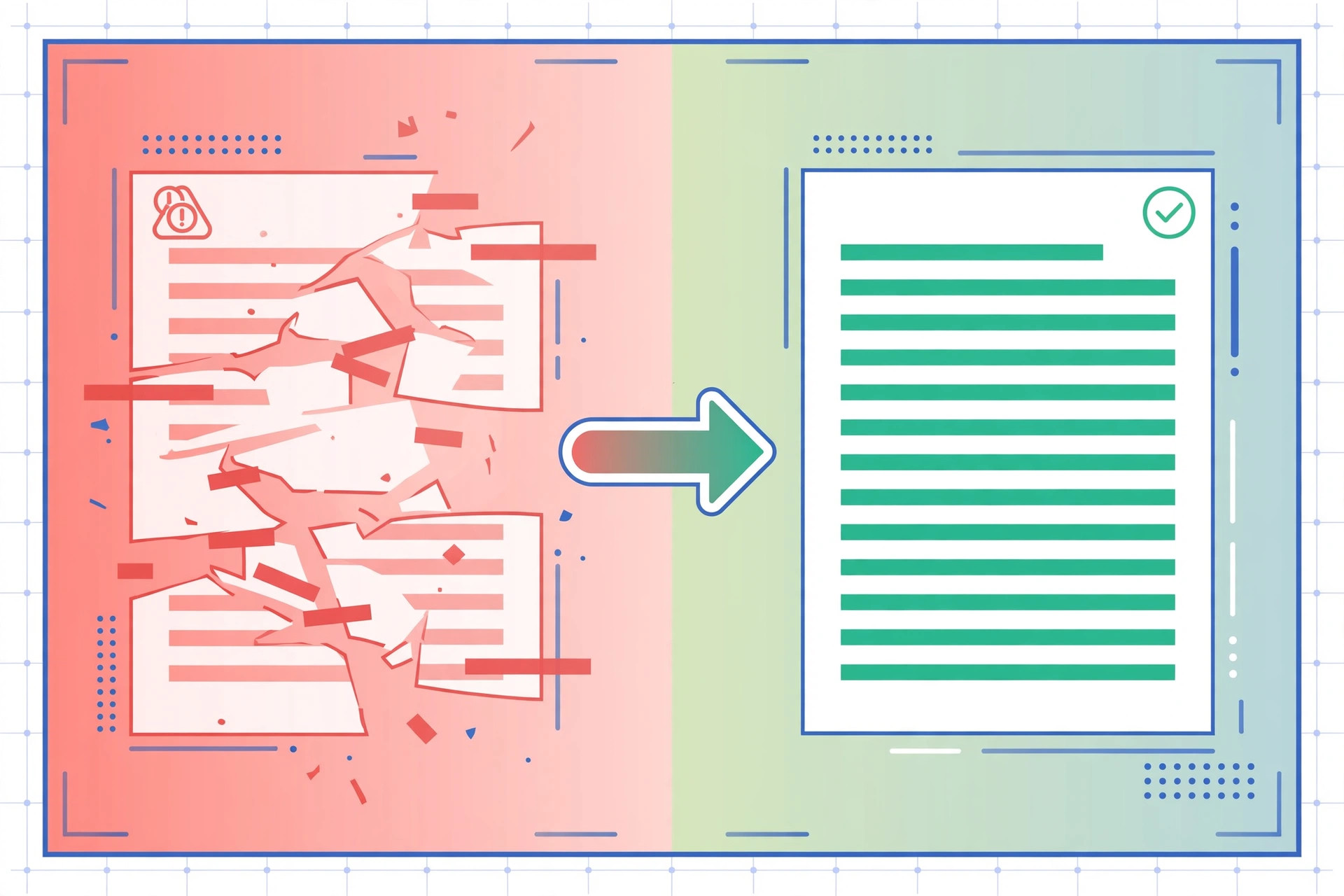
The Five Messes: Spaces, Breaks, Gaps, Duplicates, Junk
Almost every messy-text problem is one of five things. Learn to recognize them and you will know exactly which button to press.
1. Extra spaces. Two, three, or ten spaces between words where one belongs. PDFs are the worst offender: their layout engine positions each word absolutely, so copying produces unpredictable gaps. To remove extra spaces online means collapsing every run of consecutive spaces into a single space — while carefully not touching the single spaces that belong there.
2. Trailing and leading whitespace. Invisible spaces hiding at the start or end of lines. They are harmless to the eye but they break alignment, confuse word counts, and make “find and replace” miss matches. When you remove trailing spaces from every line, those ghosts disappear.
3. Empty lines. Blank lines stacked three or four deep, usually from paragraph spacing that got copied as literal line breaks. Learning to remove empty lines online in one click beats holding backspace forty times.
4. Duplicate lines. The same line appearing twice — common when copying from tables, logs, or lists that render repeated headers. A remove duplicate lines online pass keeps the first occurrence and drops the repeats.
5. Encoded junk. HTML entities like &, <, or showing up as literal text instead of &, <, or a space. Decoding them turns source code back into readable text. The same idea applies when you need to remove special characters from text \u2014 stray symbols, control characters, and encoding artifacts that sneak in during copy-paste from PDFs and web pages.
Where Messy Text Comes From
Messy text is never random — it always has a source, and knowing the source tells you which cleanup to run. Here are the four factories of formatting chaos.
PDFs. The champion of text destruction. A PDF stores where each character sits on the page, not the logical flow of sentences. Copy a two-column article and you get sentences interleaved column-by-column; copy a justified paragraph and you get random double spaces; copy a table and you get tab-separated chaos. If your workflow involves PDFs, a text cleaner is not optional — it is the toll you pay for the format.
Spreadsheets. Copy cells from Excel or Google Sheets and every cell boundary becomes a tab, every row a line break. Paste that into a document and it looks like someone sneezed on the keyboard. Replacing tabs with spaces and trimming line whitespace turns grid data back into readable lines.
Web pages. Copying from a browser drags along the page’s layout decisions: line breaks where the page wrapped text, non-breaking spaces that refuse to collapse, and HTML entities when you copy from code blocks or view-source. This is where “decode HTML entities” earns its keep.
Email clients. Forwarded emails accumulate quoting markers, wrapped lines at 72 characters, and signature blocks repeated down the thread. Cleaning a forwarded email before quoting it in a document saves real embarrassment.
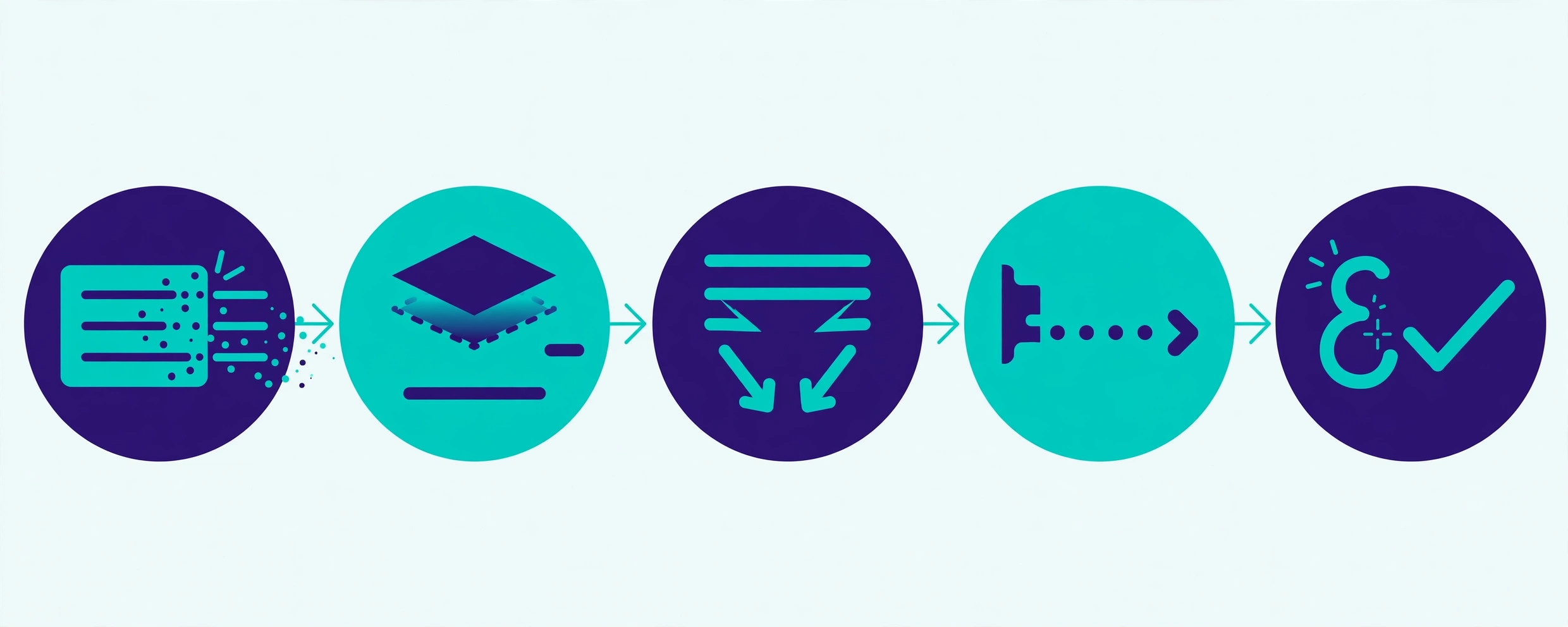
Before and After: Real Examples
Abstract advice is forgettable; concrete transformations stick. Here is what each operation actually does to real text.
Remove extra spaces. Input: The quick brown fox. Output: The quick brown fox. Every run of multiple spaces becomes exactly one. Single spaces are untouched, so normal sentences survive intact.
Trim line whitespace. Input lines ending with invisible spaces — “Report draft ” — become “Report draft”. Leading indentation is stripped too, which matters when pasting code-adjacent text or nested lists that arrived with random indentation.
Remove empty lines. Five blank lines between paragraphs collapse to nothing (or to a single separator, depending on settings). A 200-line log file with every other line blank becomes a tight 100 lines.
Replace tabs with spaces. Spreadsheet-pasted text like Name[tab]Age[tab]City becomes evenly spaced columns instead of jumpy tab stops that render differently in every application.
Decode HTML entities. Fish & Chips <3 becomes Fish & Chips <3. Copy-paste from web tutorials and documentation is full of these, and they make text look broken to anyone who does not recognize the encoding.
Step by Step: Cleaning Text with the Tool
Order matters. Run the operations in this sequence and each step makes the next one more effective — run them backwards and you will clean up after your own cleanup.
Step 1: Paste and assess. Paste your messy text into the Clean Text & Whitespace Normalizer. Before clicking anything, scan for the five messes above. Knowing what you are dealing with takes ten seconds and prevents over-cleaning. This quick assessment is the difference between a targeted cleanup and blindly mashing buttons when you clean up text pasted from an unfamiliar source.
Step 2: Remove extra spaces. Run “Remove Extra Spaces” first. This is the highest-impact single click for PDF-sourced text, and doing it early means later steps operate on predictable spacing.
Step 3: Replace tabs, then trim lines. Convert tabs to spaces next, because a tab at the start of a line is leading whitespace in disguise. Then “Trim Line Whitespace” — this turns lines that contained only spaces into truly empty lines, which sets up the next step perfectly.
Step 4: Remove empty lines. Now that whitespace-only lines are genuinely empty, one click deletes them all. If you did this step before trimming, the space-filled lines would have survived — order is everything.
Step 5: Decode HTML entities. Run this last, because entity decoding can introduce characters (like & or quotes) that you want to see in the final text, not process further. After this step, copy the result and paste it wherever it needs to go.
The whole workflow takes under a minute. Compare that with manual cleanup: finding each double space with your eyes, backspacing through blank lines, retyping & as &. For a long document, the tool pays for its (free, instant) existence hundreds of times over.
When NOT to Clean Text
A text cleaner is a blunt instrument, and blunt instruments damage delicate things. Do not run these operations on:
Code. In Python, indentation is syntax — trimming leading whitespace will break the program. In any language, collapsing spaces inside string literals changes what the code does. Clean prose with a text cleaner; format code with a code formatter.
Poetry and preformatted text. Line breaks in a poem are the art. ASCII diagrams, terminal output, and markdown code blocks all depend on exact spacing. If the whitespace carries meaning, leave it alone.
Text you have not backed up. Cleaning is destructive in the plain-text sense — there is no undo after you close the tab. For anything important, keep the original in one place and clean a copy. Thirty seconds of caution beats an hour of reconstruction.
Five Mistakes That Make Things Worse
Mistake 1: Cleaning before choosing. Pasting an entire 50-page document when you only need three paragraphs, then cleaning all of it. Select first, clean second.
Mistake 2: Removing ALL line breaks. Some people nuke every line break to make “one paragraph,” then discover they needed the paragraph structure. Remove empty lines; keep the single breaks that separate paragraphs.
Mistake 3: Decoding entities twice. Running decode on text that is already decoded turns a literal & that someone meant to show into &. If the text looks right, stop clicking.
Mistake 4: Using a server-side cleaner for sensitive text. Contracts, medical notes, unpublished manuscripts — anything confidential should only touch a cleaner that runs 100% in your browser. If the tool needs an internet connection to process text, your text is leaving your device.
Mistake 5: Forgetting the source. If the same PDF keeps producing messy text every week, fix the pipeline, not just the output. A text cleaner is a bandage; a better export setting or a direct .docx source is the cure.
Try it free — no sign-up
Run the numbers yourself in seconds. Everything happens in your browser.
Open the Clean Text & Whitespace NormalizerFrequently Asked Questions
How do I remove extra spaces in text?
Paste your text into the free Clean Text tool and click “Remove Extra Spaces”. It collapses every run of two or more spaces into a single space while leaving intentional single spaces untouched. No sign-up, no upload — everything runs in your browser.
How do I remove line breaks from text?
Use “Remove Empty Lines” to delete blank lines, or “Trim Line Whitespace” to strip leading and trailing spaces from every line. If you want one continuous paragraph, paste the text into the tool, remove the empty lines, then join the lines — the cleaned result is ready to paste anywhere.
How do I clean up copied text?
The fastest route: paste the messy text into an online text cleaner, run “Remove Extra Spaces” first, then “Remove Empty Lines”, then “Trim Line Whitespace”, then “Decode HTML Entities” if the text came from a web page. Four clicks usually takes copy-paste chaos to publish-ready.
Does cleaning text delete my formatting?
A text cleaner only normalizes invisible whitespace — extra spaces, blank lines, tabs, and HTML entities. It does not touch bold, italics, links, or other rich formatting, because it operates on plain text. If your content needs rich formatting preserved, clean it before applying styles, not after.
Is it safe to paste text into an online text cleaner?
With a client-side tool like Toolenix’s, yes: your text never leaves your device — no servers, no uploads, no logs. Avoid cleaners that send your text to a server, especially for sensitive documents, contracts, or anything under NDA.
What is the difference between removing empty lines and trimming whitespace?
Removing empty lines deletes entire lines that contain nothing (or only spaces), collapsing the vertical gaps. Trimming whitespace removes leading and trailing spaces from each line but keeps the line itself. Use both together: trim first so whitespace-only lines become truly empty, then remove the empty lines.